
Have you ever been in the middle of an important task when your laptop suddenly freezes? This frustrating issue affects countless users, leaving them wondering why their devices are malfunctioning. In this article, we will explore the question of why is my laptop freezing randomly, delving into common causes such as software conflicts, hardware malfunctions, and insufficient resources. With over 15 years of experience in troubleshooting technology issues, I will provide you with expert insights and actionable solutions to help you resolve these freezing problems. By the end of this article, you’ll have a clear understanding of the underlying factors contributing to your laptop’s performance issues and how to effectively address them.
Understanding Laptop Freezing Issues
When a laptop freezes randomly, it can disrupt productivity and lead to frustration. Freezing can be caused by various factors, ranging from hardware malfunctions to software conflicts. It’s essential to identify the root causes to effectively troubleshoot the issue. Regular updates and maintenance can prevent many freezing problems. In this section, we will explore common reasons for freezing, the signs to look out for, and how to differentiate between hardware and software issues.
Common Causes of Freezing
Several factors can lead to a laptop freezing unexpectedly. Insufficient RAM can hinder performance, especially when running multiple applications. Overheating, often due to blocked vents or dust accumulation, can also cause the system to freeze as a protective measure. Additionally, software conflicts or outdated drivers can lead to instability, resulting in random freezes.
Signs Your Laptop is Freezing
Recognizing the signs of a laptop freeze is crucial for timely intervention. Common indicators include unresponsive applications, the cursor not moving, or a spinning wheel icon that won’t go away. Sometimes, the laptop may become sluggish before a full freeze, giving users a chance to take preventive measures, such as saving work and rebooting.
Differentiating Hardware from Software Issues
Determining whether a freeze is caused by hardware or software is vital for effective troubleshooting. If the laptop freezes during startup or BIOS, it may indicate hardware problems. Conversely, if freezing occurs while using specific applications, it likely points to software conflicts or insufficient resources. Running diagnostic tools can help identify the underlying cause.
Key Points:
- Freezing can result from hardware or software issues
- Recognizing signs can lead to timely solutions
Preventive Measures for Freezing
Taking proactive steps can significantly reduce the likelihood of a laptop freezing. Regular system maintenance, such as updating software and drivers, can prevent many common issues. Additionally, ensuring proper ventilation and cleaning dust from components can help maintain optimal operating temperatures. In this section, we will discuss the importance of regular updates, system checks, and environmental considerations.
Regular Software Updates
Keeping your operating system and applications updated is essential for optimal performance. Updates often include bug fixes, security patches, and enhancements that can prevent freezing. Setting your laptop to automatically check for updates can save time and ensure your system remains reliable.
Performing Routine Maintenance
Routine maintenance, including disk cleanup and defragmentation, can help improve system performance. Checking for malware and running diagnostic tools regularly can also identify potential issues before they escalate. Creating a maintenance schedule can ensure these tasks are completed consistently.
Ensuring Proper Ventilation
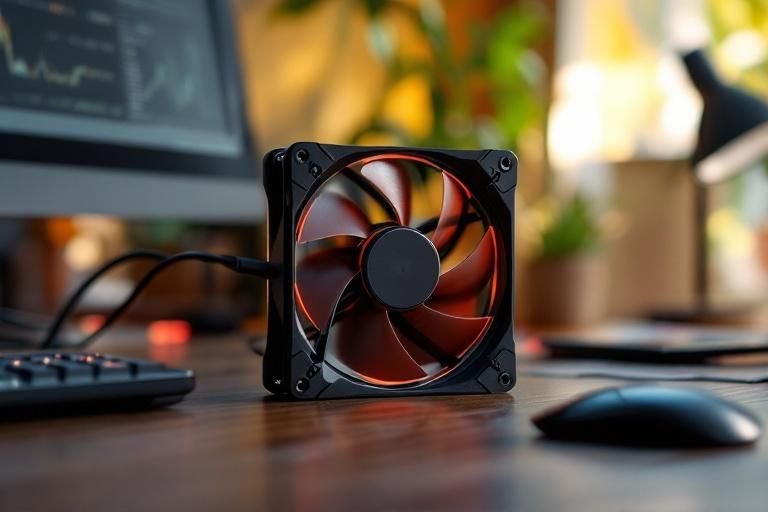
Overheating is a common cause of laptop freezing. To prevent this, ensure that your laptop is used on hard, flat surfaces to allow for proper airflow. Cleaning vents and fans regularly can also help keep temperatures down, boosting performance and reducing the chances of freezing.
Key Points:
- Regular updates help prevent freezing
- Proper maintenance and ventilation are key to laptop performance
Understanding Hardware Limitations
One of the primary reasons laptops freeze randomly is due to hardware limitations. If your laptop is older or has insufficient RAM or a slow processor, it can struggle with modern software demands. This can lead to performance issues, including freezing. Regularly monitoring your system’s resource usage can help identify if your hardware is being overwhelmed. If you are running multiple applications simultaneously, your system may not have enough resources to manage them, causing freezes and crashes.
Assessing RAM Usage
Check your RAM usage through the system task manager. If your usage consistently hovers near 80% or higher, this indicates that your laptop may not have enough memory for running applications effectively. Upgrading RAM can be a viable solution to enhance performance and reduce freezing.
Processor Performance
Monitor your CPU usage as well. High CPU usage can be a sign that your processor is overwhelmed. This could be due to running resource-heavy applications or background processes. Consider closing unnecessary applications to free up CPU resources and mitigate freezing.
Key Points:
- Hardware limitations can lead to performance issues and freezing.
- Monitoring RAM and CPU usage helps identify potential bottlenecks.
💡 Regularly monitor system performance with built-in task managers to stay informed about resource usage.
💡 Consider upgrading your hardware if consistent high usage is observed, especially for RAM and SSD.
Software Conflicts and Corruptions
Software issues can also cause laptops to freeze unexpectedly. This can stem from conflicts between applications, outdated software, or corrupted files. Ensuring that your operating system and all applications are updated can minimize compatibility issues, which often lead to freezing. Running regular maintenance checks, such as disk cleanups and malware scans, can help eliminate potential software conflicts and improve overall performance.
Identifying Conflicting Software
Sometimes, specific applications may conflict with each other, leading to freezes. If you notice freezing after installing new software, try uninstalling it to see if the problem persists. Keeping a minimal number of applications running at the same time can also help in identifying conflicts.
Updating Software Regularly
Outdated software can lead to performance issues. Regularly check for updates for your operating system and installed applications. Many updates include patches that address bugs and improve compatibility, which can significantly reduce freezing incidents.
Key Points:
- Software conflicts and outdated applications can cause freezing.
- Regular updates and maintenance checks can improve laptop performance.
💡 Perform regular malware scans to ensure no malicious software is affecting performance.
💡 Keep your operating system and applications updated to minimize bugs and conflicts.
EXPERT TIPS Pro Advice
Perform a clean boot
This helps to identify if background programs are causing freezes by starting Windows with a minimal set of drivers and startup programs.
Monitor temperature and cooling
Overheating can lead to throttling and freezes. Ensure your laptop’s cooling vents are clear and consider using a cooling pad.
Check for disk errors
Run disk checks to identify and repair file system errors that may cause instability and freezing.
Utilize system restore points
If freezes began after a recent change, using a system restore can revert your laptop to a previous state without issues.
Backup data regularly
In case of severe freezes or crashes, having backups ensures you won’t lose important files during troubleshooting.
Frequently Asked Questions
Conclusion
Laptop freezing can stem from various issues, including insufficient RAM, overheating, or malware. Regular maintenance, managing applications, and upgrading hardware are key strategies to improve performance. Identifying the root cause is essential for effective solutions.
🎯 Key Takeaways:
- Freezing can result from RAM shortages or overheating.
- Regular maintenance and updates are crucial for performance.
- Malware can significantly impact laptop functionality.
- Upgrading RAM can enhance multitasking capabilities.
Expert Advice: Monitor your laptop’s performance and address potential issues promptly. Regular checks and maintenance can save you from more significant problems down the road.
Take a moment to analyze your laptop’s performance and apply these tips to enhance its efficiency.