

Have you ever wondered, “Why is my laptop fan always running?” This persistent noise can be not only distracting but also a sign of underlying issues with your device. Whether you’re working on a demanding task or simply browsing the web, a constantly running fan may indicate that your laptop is struggling to manage heat or performance. With over 15 years of experience in technology troubleshooting, I’ll guide you through the common reasons for this phenomenon and offer practical solutions. In this article, you will learn about the factors that contribute to fan activity, how to diagnose issues, and tips to optimize your laptop’s performance. Let’s dive into the world of laptop cooling systems and discover how to keep your device running smoothly.
Understanding Laptop Cooling Systems
Laptop fans are essential components of the cooling system, designed to regulate temperature during operation. They activate when the internal temperature exceeds a certain threshold, ensuring that the CPU and GPU do not overheat. This constant monitoring is crucial for maintaining optimal performance and longevity of the device. If the fan is always running, it may indicate heavy system load or inadequate cooling. Understanding how these cooling systems work can help users diagnose potential issues more effectively.
How Cooling Systems Function
Cooling systems in laptops typically consist of heat sinks and fans. The heat sink absorbs heat generated by the processor, while the fan dissipates this heat into the environment. This process prevents overheating, which can lead to system failures. Ensuring that these components are functioning correctly is vital for maintaining a stable operating temperature.
Temperature Thresholds
Most laptops have built-in temperature thresholds that trigger the fan to start. When the CPU or GPU reaches a specific temperature, the fan kicks in to cool down the system. Understanding these thresholds can help users identify if their laptop is running too hot and requires attention.
Key Points:
- Laptop fans help prevent overheating by regulating internal temperatures.
- Understanding how cooling systems work can assist in troubleshooting fan issues.
Common Reasons for Continuous Fan Operation
There are several reasons why a laptop fan may run continuously. High CPU usage due to demanding applications, poor ventilation, or dust buildup can all contribute to increased fan activity. Identifying the root cause is essential for addressing the issue effectively. Continuous fan operation can lead to increased noise and battery drainage, making it important to understand these factors.
High System Load
If your laptop is running resource-intensive applications such as video editing software or games, the CPU and GPU will generate more heat, prompting the fan to run continuously. Monitoring task manager can help identify processes that are consuming excessive resources.
Poor Ventilation and Dust Accumulation
Dust buildup inside the laptop can obstruct airflow and decrease cooling efficiency. Additionally, placing your laptop on soft surfaces can block vents. Regular cleaning and proper placement can enhance airflow and reduce fan noise.
Key Points:
- High CPU usage from demanding apps is a common reason for constant fan activity.
- Dust buildup and poor ventilation can hinder cooling efficiency and lead to ongoing fan operation.
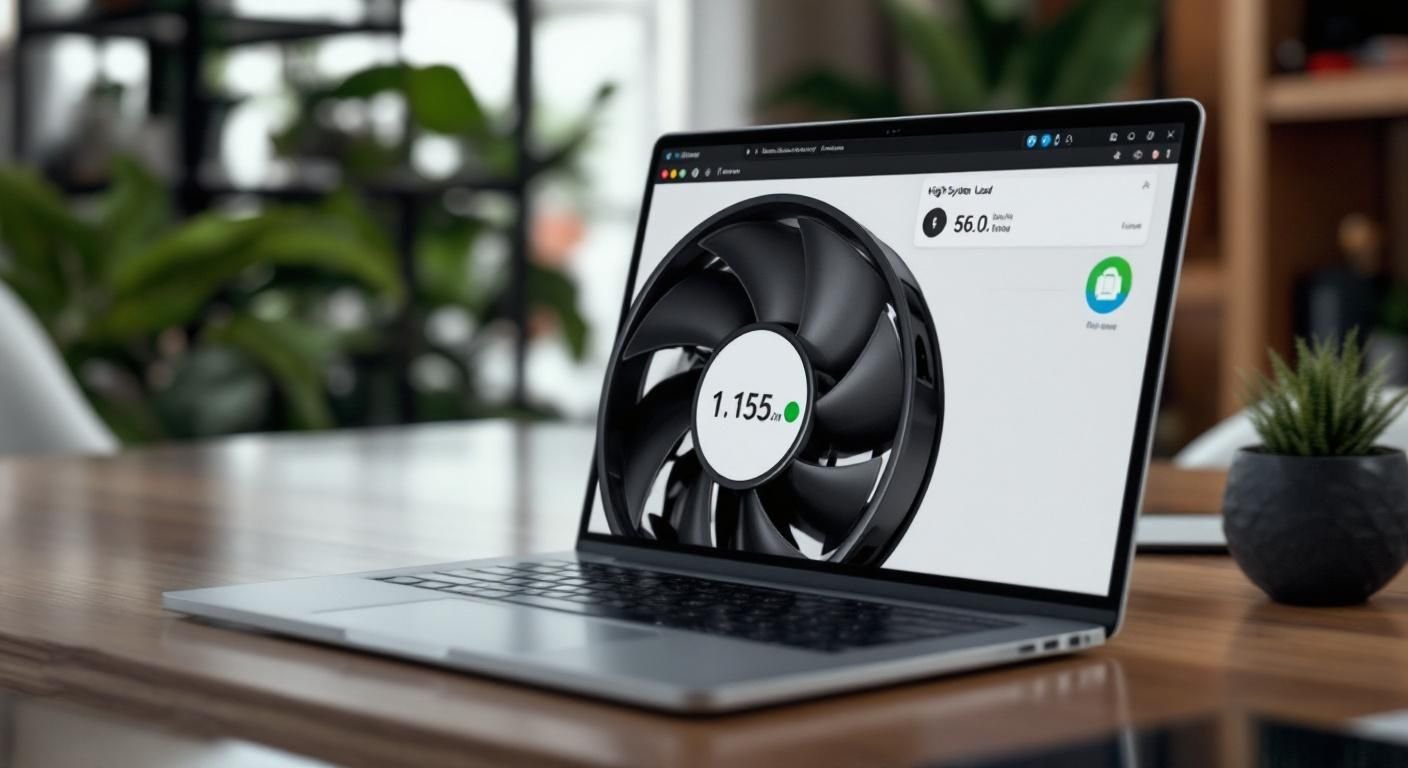
Understanding Laptop Fan Operation
Laptop fans are essential for maintaining optimal operating temperatures by dissipating heat generated by internal components. When your laptop fan is always running, it indicates that the system is working hard to cool itself. This constant operation can arise from various factors, including high CPU usage, insufficient ventilation, or ambient temperature. Understanding these aspects can help you troubleshoot the issue effectively and improve your laptop’s performance.
High CPU Usage
One of the most common reasons for a constantly running fan is high CPU usage. This can be caused by running resource-intensive applications, background processes, or malware. To check CPU usage, you can use built-in system monitoring tools. Identifying and closing unnecessary applications can significantly reduce CPU load and fan activity.
Insufficient Ventilation
Poor airflow can exacerbate heat retention in laptops, leading to increased fan activity. Ensure that your laptop is placed on a hard, flat surface, and avoid using it on soft surfaces like beds or couches. Regularly cleaning air vents from dust and debris can also help maintain proper airflow, reducing the need for the fan to run continuously.
Ambient Temperature Effects
The surrounding environment plays a crucial role in your laptop’s cooling efficiency. Higher ambient temperatures can lead to increased fan activity as the laptop attempts to cool itself. If possible, use your laptop in cooler environments or consider using cooling pads to help dissipate heat more effectively.
Key Points:
- High CPU usage is a primary cause of constant fan operation.
- Proper ventilation is crucial for maintaining optimal laptop performance.
💡 Monitor CPU usage regularly to identify resource hogs. This helps pinpoint applications that may be causing excessive fan activity.
💡 Keep laptop vents clean by using compressed air to remove dust. This simple maintenance task can significantly improve airflow and cooling efficiency.
💡 Consider using a laptop cooling pad if you often work in warm environments. This accessory can enhance cooling and reduce fan noise.
Advanced Troubleshooting Techniques
If your laptop fan continues to run excessively despite addressing basic issues, it may be time to explore advanced troubleshooting techniques. These methods can help identify underlying problems within the system, such as software glitches or hardware failures. Taking a systematic approach to diagnosing the issue will enable you to resolve it effectively.
Check for Software Issues
Outdated or corrupt drivers can lead to inefficient hardware operation, including fan control. Ensure that your operating system and all drivers are up to date. Additionally, uninstall any recently installed applications that may conflict with system processes, as they can keep the fan running unnecessarily.
Inspect Hardware Components
Hardware failures or malfunctions can also cause the fan to run continuously. Open up your laptop to check for loose connections or damaged components. Pay special attention to the thermal paste between the CPU and heatsink, as degraded thermal paste can hinder heat dissipation, prompting the fan to work harder.
Reset SMC or BIOS Settings
For laptops with a System Management Controller (SMC), resetting it can sometimes resolve fan-related issues. Similarly, restoring BIOS settings to default can help ensure that the fan operates as per manufacturer specifications. Follow the manufacturer’s guidelines for resetting these settings.
Key Points:
- Software conflicts can lead to increased fan activity; keeping software updated is crucial.
- Regular hardware inspections can prevent overheating problems caused by component failures.
💡 Regularly update your operating system and drivers to prevent software-related fan issues. This practice enhances system stability and performance.
💡 Inspect the thermal paste condition during maintenance. Reapplying thermal paste can significantly improve heat transfer and reduce fan activity.
💡 Resetting SMC or BIOS can resolve persistent fan issues. Ensure you follow the correct procedures to avoid further complications.
EXPERT TIPS Pro Advice
Always monitor system performance after updates.
This helps you catch any new issues early on, ensuring your laptop runs smoothly without unnecessary fan noise.
Consider environmental factors when using your laptop.
Using your laptop in a cooler environment can reduce the fan’s workload and extend the lifespan of internal components.
Document any changes made during troubleshooting.
Keeping a record helps you identify what works or doesn’t work, aiding future troubleshooting efforts.
Use system monitoring software for real-time analysis.
Monitoring tools can provide insights into CPU temperature and usage, helping you pinpoint issues affecting fan performance.
Perform regular system maintenance.
Routine checks and cleaning can prevent overheating issues and keep your laptop running efficiently.
Frequently Asked Questions
Conclusion
A constantly running laptop fan typically indicates overheating or heavy resource usage. Regular maintenance, monitoring software processes, and ensuring proper ventilation are key to managing fan activity. Understanding your laptop’s thermal behavior helps maintain optimal performance and longevity.
🎯 Key Takeaways:
- High temperatures trigger fan activity to prevent overheating.
- Dust buildup can significantly impact cooling efficiency.
- Monitor software processes to identify resource hogs.
- Regular cleaning and maintenance enhance airflow.
- Temperature monitoring tools help preemptively address issues.
Expert Advice: Stay proactive about your laptop’s health by performing regular maintenance and monitoring its performance. Addressing overheating issues early can prevent more significant problems down the line.
Take a moment to inspect your laptop’s ventilation and clean it if necessary to ensure it runs efficiently.