Have you ever wondered what SSD in a computer means and why it has become a game-changer in data storage? Solid State Drives (SSDs) are revolutionizing how we store and access data, offering faster speeds and improved reliability compared to traditional hard drives. With the growing demand for enhanced performance in computing, understanding SSD technology is crucial for anyone looking to upgrade their system. In this article, we will dive deep into what SSDs are, how they function, their key benefits, and the different types available. By the end, you will have a comprehensive understanding of SSDs and how they can transform your computing experience.
Understanding SSDs: The Basics
A Solid State Drive (SSD) is a type of storage device used in computers that stores data on flash memory, making it faster than traditional hard drives. Unlike Hard Disk Drives (HDDs), which rely on spinning disks to read and write data, SSDs use integrated circuits. This fundamental difference allows SSDs to access data almost instantaneously, which enhances overall system performance, especially during boot-up and application loading times. SSDs are becoming increasingly popular in both consumer and enterprise applications due to their speed, durability, and energy efficiency.
How SSDs Work
SSDs operate using NAND-based flash memory, which retains data even when the power is turned off. When data is written to an SSD, it is stored in memory cells that are grouped into pages and blocks. This structure allows for faster data access and retrieval than traditional hard drives. Additionally, SSDs have no moving parts, which reduces wear and tear and enhances reliability, making them a preferred choice for modern computing needs.
Advantages of SSDs Over HDDs
The primary advantages of SSDs over HDDs include significantly faster read and write speeds, lower latency, and improved durability. While HDDs may be more cost-effective for large storage capacities, SSDs excel in performance-critical applications, such as gaming, video editing, and booting operating systems. Furthermore, SSDs consume less power, contributing to longer battery life in laptops and portable devices, which is essential for users on the go.
Key Points:
- SSDs use flash memory for faster data access
- No moving parts make SSDs more durable and reliable
Types of SSDs and Their Uses
There are several types of SSDs, each designed for specific uses in computing environments. The most common types include SATA SSDs, NVMe SSDs, and M.2 SSDs. SATA SSDs connect via the SATA interface and offer moderate performance improvements over HDDs. NVMe SSDs, on the other hand, utilize the PCIe interface, allowing for significantly higher data transfer rates. M.2 SSDs are compact and can be either SATA or NVMe, making them suitable for ultra-thin laptops and desktops where space is a constraint.
SATA vs. NVMe SSDs
SATA SSDs typically have a maximum transfer speed of around 600 MB/s, which is sufficient for basic computing tasks. However, NVMe SSDs can achieve speeds exceeding 3,000 MB/s, making them ideal for high-performance applications such as gaming or data-intensive tasks. Understanding these differences helps users select the right SSD based on their performance needs and budget.
M.2 SSDs: Compact and Versatile
M.2 SSDs are designed for compactness and versatility, fitting directly onto the motherboard without the need for cables. They come in various lengths and interfaces (SATA or NVMe) and are widely used in modern laptops and desktops. Their small form factor and high performance make them a popular choice for manufacturers aiming to create sleek and powerful devices.
Key Points:
- Different types of SSDs serve various performance needs
- NVMe SSDs offer superior speed compared to SATA SSDs
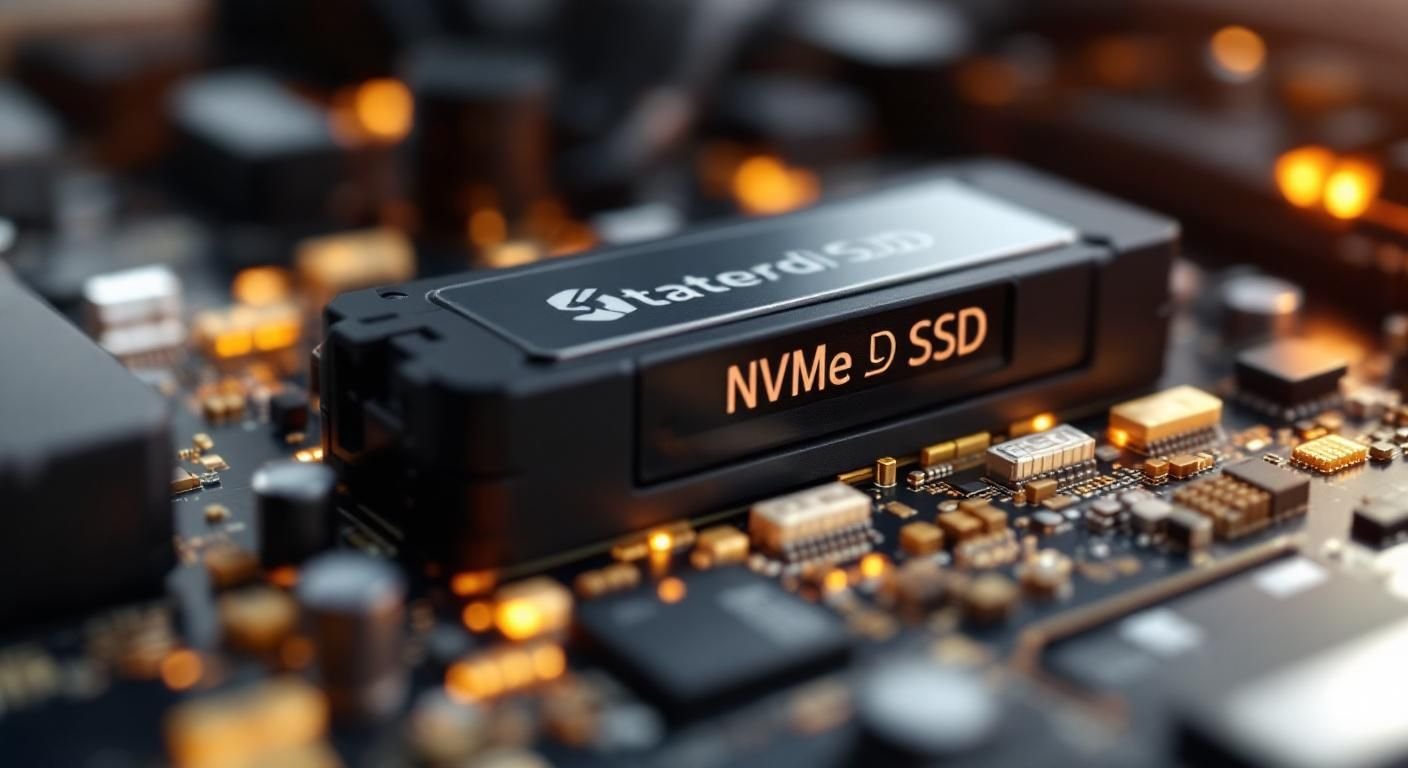
Understanding SSD Technology
Solid State Drives (SSDs) are storage devices that use integrated circuit assemblies to store data persistently. Unlike traditional Hard Disk Drives (HDDs), which rely on spinning disks and mechanical arms, SSDs have no moving parts. This results in faster data access speeds, lower latency, and greater durability. The architecture of SSDs typically consists of NAND flash memory, which allows for rapid read and write operations. As technology evolves, SSDs have become a critical component in enhancing the overall performance of computers, especially in tasks that require quick data retrieval, such as gaming or running complex applications.
Types of SSDs
There are several types of SSDs: SATA, NVMe, and M.2. SATA SSDs connect through the SATA interface, offering improvements over HDDs but limited by the SATA bandwidth. NVMe SSDs, on the other hand, leverage the PCIe interface to deliver significantly faster data transfer speeds. M.2 SSDs are a form factor that can support both SATA and NVMe protocols, providing flexibility in design and performance. Understanding these types will help you select the right SSD for your specific computing needs.
SSD Performance Metrics
When evaluating SSDs, key performance metrics such as read/write speeds, IOPS (Input/Output Operations Per Second), and endurance are crucial. Read/write speeds indicate how quickly data can be accessed or written. IOPS measures how many operations can be performed in a given time, which is essential for multi-tasking environments. Endurance, often expressed in TBW (Terabytes Written), indicates how long an SSD can last under heavy use. Knowing these metrics allows for informed decisions when upgrading or building a computer.
Key Points:
- SSDs offer faster performance than traditional HDDs due to their lack of moving parts.
- Understanding the types and performance metrics of SSDs is essential for making informed purchasing decisions.
💡 Consider your workload: If you frequently handle large files, opt for NVMe SSDs for better performance.
💡 Check compatibility: Ensure your motherboard supports the SSD type you choose, especially for M.2 and NVMe drives.
💡 Monitor health: Regularly check the health of your SSD using built-in tools to prolong its lifespan.
Installing and Managing SSDs
Installing an SSD can significantly improve your computer’s speed and responsiveness. The installation process varies depending on the type of SSD and your computer’s configuration, but it typically involves connecting the SSD to the motherboard and powering it up. After installation, managing your SSD is essential to maintain its performance and longevity. This includes regular firmware updates, optimizing settings, and using the drive efficiently to avoid unnecessary wear.
Installation Steps
To install an SSD, begin by powering down your computer and disconnecting it from the power source. Open the case and locate the drive bay or M.2 slot, then securely mount the SSD. Connect the SATA or power cables if necessary, and close the case. Once the computer is powered back on, initialize the SSD through the operating system’s disk management tool to prepare it for use. Following these steps will ensure a smooth installation process.
Optimizing SSD Performance
To optimize SSD performance, consider enabling TRIM support, which helps manage unused data blocks and improves write speeds over time. Regularly defragmenting is unnecessary and can actually harm the SSD. Instead, utilize built-in operating system tools to manage storage efficiently. Additionally, avoid filling the SSD to its maximum capacity to maintain optimal performance and longevity. These practices will help keep your SSD running smoothly.
Key Points:
- Proper installation and management of SSDs can enhance their performance and lifespan.
- Optimizing settings is crucial for maintaining SSD efficiency, particularly in everyday usage.
💡 Backup data: Always maintain backups, as SSDs can fail unexpectedly despite their reliability.
💡 Avoid overfilling: Keeping some free space on your SSD helps maintain speed and performance.
💡 Use SSD management software: Utilize tools to monitor drive health and optimize performance settings.
EXPERT TIPS Pro Advice
Understand your storage needs
Assess your usage patterns to determine the right capacity and type of SSD that suits your requirements, ensuring optimal performance.
Keep firmware updated
Regular firmware updates can improve performance and fix bugs, enhancing your SSD’s reliability and lifespan.
Utilize write amplification
Be aware of write amplification and manage data writing processes to prolong SSD life and maintain speed.
Implement regular monitoring
Use monitoring tools to keep track of your SSD’s health and performance metrics, allowing for proactive maintenance.
Frequently Asked Questions
Conclusion
In summary, SSDs are a modern storage solution that significantly improve computer performance with faster data access and increased reliability. Transitioning from HDDs to SSDs can enhance user experience, especially for demanding applications like gaming and multitasking. Understanding installation and benefits can aid in making informed decisions.
🎯 Key Takeaways:
- SSDs use flash memory for faster data access.
- They are more reliable and efficient than HDDs.
- Installing an SSD can dramatically improve performance.
- SSDs are ideal for gaming and heavy applications.
Expert Advice: Consider upgrading to an SSD to take full advantage of your computer’s capabilities. The investment can lead to a noticeable difference in speed and performance, making your daily computing tasks more enjoyable.
Explore your options for upgrading to an SSD and experience the performance boost firsthand!








Leave a Reply