
Have you ever faced the frustrating situation of your laptop not charging from USB C? This common issue can stem from a variety of factors, leaving many users puzzled and searching for answers. As an expert in laptop technology, I will guide you through the typical reasons behind this problem and how to troubleshoot it effectively. In this article, you’ll learn about compatibility issues, potential hardware and software misconfigurations, and practical solutions to ensure your laptop charges smoothly through USB C. Let’s delve into the reasons and find the answers you need.
Understanding USB-C Charging Technology
USB-C is a versatile connector standard that supports various functionalities, including data transfer and power delivery. Its ability to provide charging power to laptops depends on several factors, such as the cable quality, the power source, and the laptop’s USB-C implementation. Unlike traditional charging ports, USB-C can deliver higher wattage, making it suitable for charging larger devices. However, not all USB-C ports are created equal, leading to confusion regarding their charging capabilities. Understanding the basics of USB-C can help users troubleshoot charging issues effectively.
Power Delivery (PD) Protocol
The Power Delivery (PD) protocol is crucial for USB-C charging, enabling devices to negotiate power levels. A laptop requires a compatible charger that supports PD to charge via USB-C. If the charger does not meet the required wattage, the laptop may not charge. Furthermore, devices must also support PD to utilize the full potential of USB-C charging, which can range from 5W to 100W.
Cable Quality and Compatibility
The quality and specifications of the USB-C cable significantly impact charging performance. Not all USB-C cables support high wattage, and using a low-quality or incompatible cable can prevent charging. Users should ensure that the cable is rated for power delivery and is certified for use with laptops. This can help avoid potential charging failures and ensure efficient power transfer.
Key Points:
- USB-C can deliver varying power levels based on device compatibility
- Not all cables support high wattage charging
Common Reasons for USB-C Charging Issues
Several factors can contribute to a laptop not charging via USB-C. Identifying these issues is essential for effective troubleshooting. Sometimes, the problem may be as simple as a faulty cable or charger, while other times it may involve hardware limitations. Understanding these common challenges can guide users toward potential solutions, ensuring their devices function optimally.
Incompatible Charger or Cable
Using a charger or cable that does not support the required wattage for the laptop can lead to charging problems. For example, a smartphone charger typically provides less power than needed for a laptop. Always check the specifications of the charger and cable to ensure compatibility with the laptop’s requirements.
USB-C Port Limitations
Not all USB-C ports on laptops are created for charging. Some ports are designed solely for data transfer. Users should consult their laptop’s documentation to identify which USB-C ports support charging and ensure they are using the correct port for this purpose.
Hardware or Software Issues
Occasionally, hardware malfunctions or software glitches can hinder charging. This could include damaged ports, outdated firmware, or settings that prevent charging. Regular system updates and routine hardware checks can help mitigate these issues, ensuring consistent charging performance.
Key Points:
- Identify the correct USB-C port for charging
- Charger compatibility is essential for successful charging
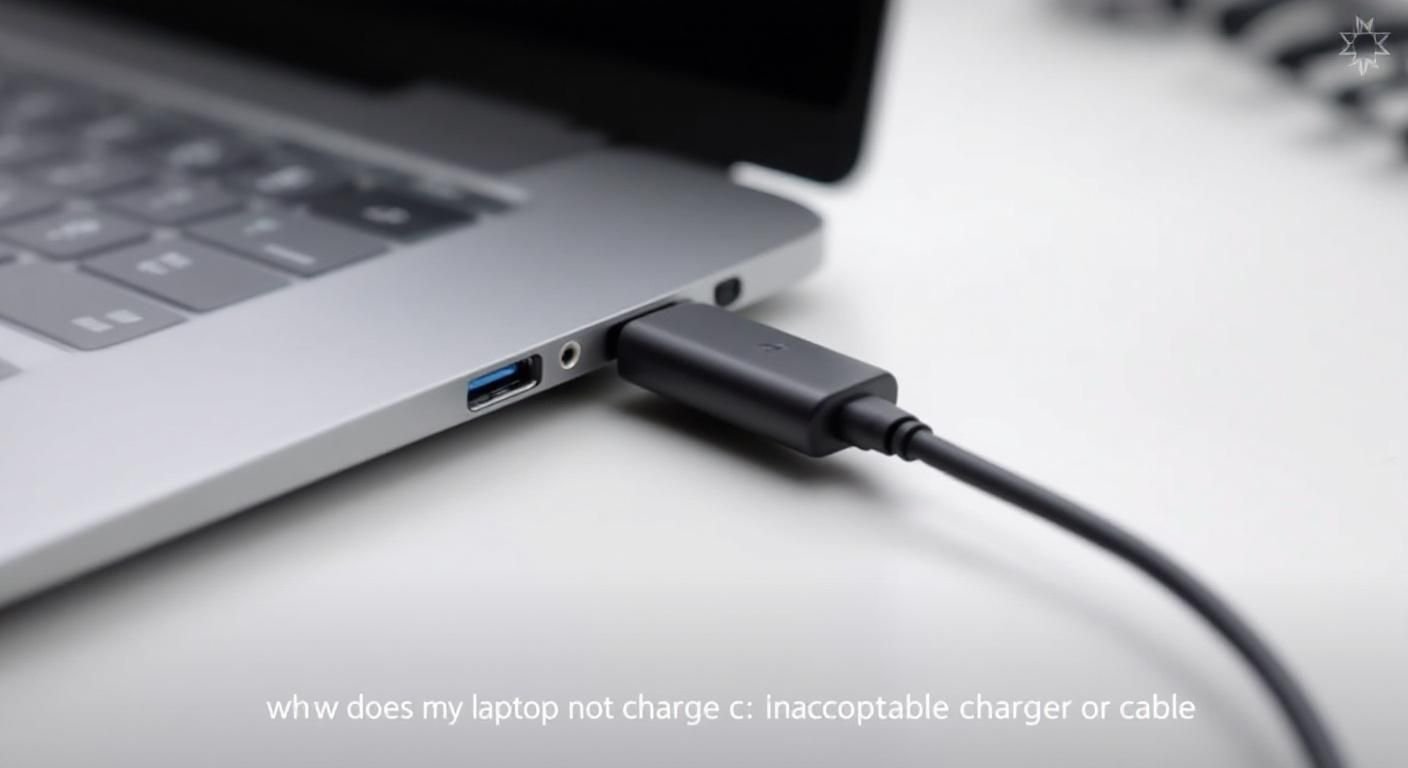
Understanding USB-C Charging Standards
USB-C is a versatile connector that supports various protocols, including power delivery for charging devices. However, not all USB-C ports are created equal. Some are designed solely for data transfer, while others support charging. To determine why your laptop may not charge from a USB-C port, it’s crucial to understand the specifications of both the laptop and the charging source. Look for indicators such as the USB Power Delivery (USB PD) protocol, which is essential for delivering higher wattages necessary for laptop charging.
Power Delivery Compatibility
The USB Power Delivery standard allows for higher power levels to be delivered through USB-C connections. Laptops typically require a minimum wattage to charge effectively. If the USB-C source does not support USB PD or delivers insufficient wattage, your laptop will not charge. Make sure to check the wattage requirements of your laptop to ensure compatibility with the power source.
Port Designation
Not all USB-C ports on a laptop are intended for charging. Some may be dedicated solely to data transfer. Check your laptop’s specifications to identify which USB-C ports are designated for power input. Typically, the charging port will be labeled with a lightning bolt icon or similar designation.
Key Points:
- USB-C does not guarantee charging; check compatibility.
- Understand the wattage requirements for effective charging.
💡 Check the laptop’s user manual to confirm which USB-C port supports charging.
💡 Test different USB-C cables as some may not support power delivery.
💡 Ensure the power source is functioning; try charging another device with the same port.
Troubleshooting USB-C Charging Issues
If your laptop is not charging via USB-C, several factors could be at play. Start by examining the cable and port for physical damage, as wear and tear can impede functionality. If both seem intact, consider software settings or updates that might affect charging behavior. Additionally, using a different power adapter can help isolate the issue, as some adapters may not provide sufficient power.
Inspecting Hardware
Begin by examining the USB-C ports on both your laptop and the charging source for any debris, dust, or damage. Clean the ports gently with compressed air. Also, inspect the USB-C cable for any visible signs of damage, such as fraying or bends, which can impact its ability to transmit power.
Checking Software Settings
Sometimes, software settings can interfere with charging. Ensure your laptop’s operating system is up to date, as manufacturers often release fixes for charging issues. Additionally, check your power settings to confirm that the battery is allowed to charge while the laptop is in sleep or low-power mode.
Key Points:
- Physical and software checks are essential for troubleshooting.
- Regular maintenance can prevent charging issues.
💡 Regularly update your laptop’s firmware to avoid compatibility issues.
💡 Consider performing a power reset by completely shutting down the laptop and disconnecting it from all power sources.
💡 If issues persist, consult the laptop’s technical support for further diagnostics.
EXPERT TIPS Pro Advice
Understand the power requirements of different devices.
Knowing the wattage needs of your devices ensures you use compatible chargers, preventing charging failures.
Use high-quality USB-C cables.
Quality cables are designed to handle higher power levels, reducing the chance of charging issues due to cable inefficiency.
Perform regular software updates.
Keeping your operating system and drivers up to date can resolve compatibility issues affecting charging.
Label your USB-C ports if multiple are present.
If your laptop has multiple USB-C ports, labeling them can help easily identify which ones support charging.
Monitor battery health regularly.
Keeping track of your battery’s health can provide insights into charging issues and overall device performance.
Frequently Asked Questions
Conclusion
Understanding why your laptop may not charge from USB-C involves checking compatibility, cable specifications, and power delivery capabilities. Proper troubleshooting steps, including ensuring the right cable and potential BIOS updates, can help resolve issues effectively.
🎯 Key Takeaways:
- Ensure your USB-C cable supports the required wattage for charging.
- Not all USB-C cables are suitable for laptop charging.
- Close background applications to improve charging performance.
- Updating your laptop’s BIOS can fix charging issues.
- Test different cables and ports for troubleshooting.
Expert Advice: Stay informed about your laptop’s power requirements and cable specifications to avoid charging issues. Regular maintenance and updates can enhance performance and longevity.
If you’re experiencing ongoing problems, consider consulting your laptop’s support resources for further assistance.








Leave a Reply