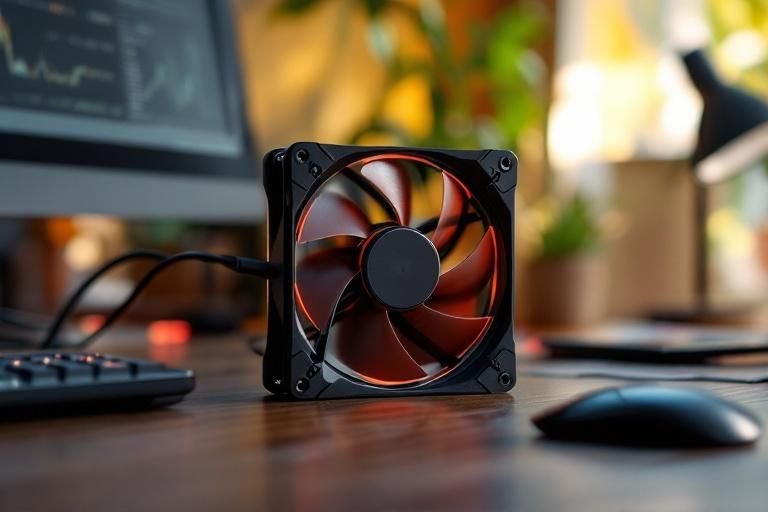
Have you ever wondered why is my computer fan loud? A noisy fan can be more than just a nuisance; it can indicate underlying issues that may affect your computer’s performance. With over 15 years of experience in technology troubleshooting, I understand how frustrating it can be to deal with a loud fan, especially when it disrupts your workflow or gaming experience. In this article, we will explore the common reasons behind loud computer fans, the potential implications of ignoring the noise, and practical solutions to help you restore peace to your computing environment. Whether you’re a casual user or a tech enthusiast, you’ll find valuable insights to keep your computer running smoothly.
Understanding Computer Fans and Their Role
Computer fans play a crucial role in maintaining optimal temperatures within your system. They help dissipate heat generated by various components, such as the CPU and GPU. When your computer is functioning normally, fans should operate quietly. However, if you notice an increase in noise levels, it could indicate an underlying issue. Understanding the basic functions of your computer’s cooling system can shed light on why your fan is loud.
How Fans Operate
Computer fans are designed to pull cool air into the system and push hot air out. They are typically controlled by the system’s BIOS or software, adjusting their speed based on temperature readings. When components heat up, fans ramp up to prevent overheating, which can lead to increased noise levels. Understanding this operation helps in identifying potential issues with fan speed or airflow.
Signs of Overheating
If your computer fan is loud, it might be a signal that the system is overheating. Common signs include sluggish performance, unexpected shutdowns, or hot to the touch surfaces. Keeping an eye on these indicators can help you determine if the loud fan noise is a symptom of a more significant problem that needs addressing.
Key Points:
- Computer fans help maintain optimal system temperatures.
- Increased fan noise often indicates overheating or airflow issues.
Common Causes of Loud Computer Fans
Loud fan noise can arise from several factors, ranging from dust buildup to high-performance demands. Identifying the root cause is essential for addressing the issue effectively. Understanding these common causes can guide users in troubleshooting and maintaining their systems more effectively.
Dust Accumulation
One of the most common causes of loud fans is dust buildup inside the computer case. Dust can obstruct airflow and cause fans to work harder, resulting in increased noise. Regular cleaning of your computer’s interior can significantly reduce fan noise and improve cooling efficiency.
High System Demands
Running resource-intensive applications, such as games or video editing software, can lead to higher temperatures and, consequently, louder fans. Monitoring system usage can help identify when your computer is under stress, allowing you to manage performance and potentially reduce noise levels.
Key Points:
- Dust buildup can significantly impact fan performance.
- High system demands can lead to increased fan noise due to overheating.
Understanding the Causes of Loud Computer Fans
A loud computer fan can indicate various issues, ranging from simple dust accumulation to more complex hardware problems. Understanding these causes can help you determine the right course of action. One primary reason for loud fans is overheating; when components like the CPU or GPU get too hot, the fans work harder to cool them down. Additionally, resource-intensive applications can also cause your computer to strain, leading to increased fan activity. Identifying these factors can aid in mitigating the noise and improving overall performance.
Overheating Components
Overheating is often a primary culprit behind loud fans. When the CPU or GPU exceeds safe temperature thresholds, fans ramp up to cool them down. Regularly monitoring temperatures using system monitoring tools can help you identify overheating before it escalates into hardware failure.
Dust Accumulation
Dust can clog fans and vents, impeding airflow and causing components to overheat. Regular cleaning of your computer’s interior can significantly reduce fan noise. Make sure to carefully remove dust using compressed air, focusing on fans and heat sinks.
Key Points:
- Loud fans often indicate overheating or resource-heavy processes.
- Regular maintenance can prevent noise and prolong hardware life.
💡 Keep your computer in a well-ventilated area to promote airflow and reduce overheating.
💡 Regularly check for and close unnecessary applications that may increase CPU or GPU usage.
💡 Schedule periodic cleaning sessions every few months to maintain optimal airflow and prevent dust buildup.
Diagnosing and Fixing Fan Noise Issues
Diagnosing the exact reason for loud fan noise is crucial for effective resolution. Start by checking system resource usage through task manager tools; identify if specific applications are causing high CPU or GPU loads. If resource demands are normal, inspect the physical condition of your fans. Ensure they are securely mounted and free of obstructions. If fans are malfunctioning, they may need replacing or servicing to restore quiet operation.
Monitoring System Resources
Using system monitoring tools to track CPU, GPU, and RAM usage can help identify what is causing the fan to work harder. If you notice high usage without any active tasks, it may suggest a background process or malware, prompting further investigation.
Inspecting Fan Condition
A physical inspection of the fans can reveal issues such as loose connections or damaged blades. Ensure that fans are not obstructed by cables or dust, as this can impact their performance. Sometimes, reseating or tightening the fans can reduce noise levels.
Key Points:
- Monitoring and inspecting components are key steps in diagnosing noise issues.
- Preventive measures can help maintain a quieter computing environment.
💡 Regularly update your operating system and software to ensure efficient performance and reduce unnecessary background processes.
💡 Consider using software that allows fan speed control to optimize cooling without excessive noise.
💡 If fan issues persist, consult a professional to avoid potential hardware damage.
EXPERT TIPS Pro Advice
Use thermal paste on CPU and GPU.
Applying thermal paste can improve heat dissipation, which can help maintain lower temperatures and quieter fan operation.
Check for firmware updates.
Firmware updates can enhance hardware performance and efficiency, potentially resolving fan noise issues.
Optimize power settings.
Adjusting power settings can help manage resource usage, reducing the load on the CPU and GPU, and subsequently lowering fan noise.
Consider fan replacement.
If fans are old or noisy despite cleaning, replacing them with higher quality or quieter options can significantly reduce noise levels.
Utilize noise-dampening materials.
Adding noise-dampening materials inside your computer case can minimize the sound of fans and other components.
Frequently Asked Questions
Conclusion
Loud computer fans often result from overheating, dust accumulation, or high resource demands. Regular maintenance, such as cleaning and monitoring temperatures, can significantly mitigate noise issues. Understanding the reasons behind fan noise allows users to take appropriate actions to maintain their system’s performance.
🎯 Key Takeaways:
- Loud fans often indicate overheating or high resource usage.
- Regular cleaning is essential for maintaining quiet operation.
- Monitoring CPU and GPU usage helps identify demanding applications.
- Addressing airflow issues can reduce fan noise.
- Self-maintenance is usually sufficient for noise issues.
Expert Advice: Stay proactive about system maintenance to enhance performance and minimize noise. Regularly check for dust buildup and monitor your computer’s resource usage to keep your fan running smoothly.
Take a moment to assess your computer’s condition, clean it if necessary, and monitor its performance to ensure a quieter and more efficient experience.








Leave a Reply